 Your Restaurant Is on Google. But Are Customers Finding the Right Ordering Link?
When customers search for your restaurant on Google, they often see your Google Business Profile before they visit your website.
They can find your opening hours, address, phone number, photos, reviews, and sometimes an Order Online button.
But here's an important question:
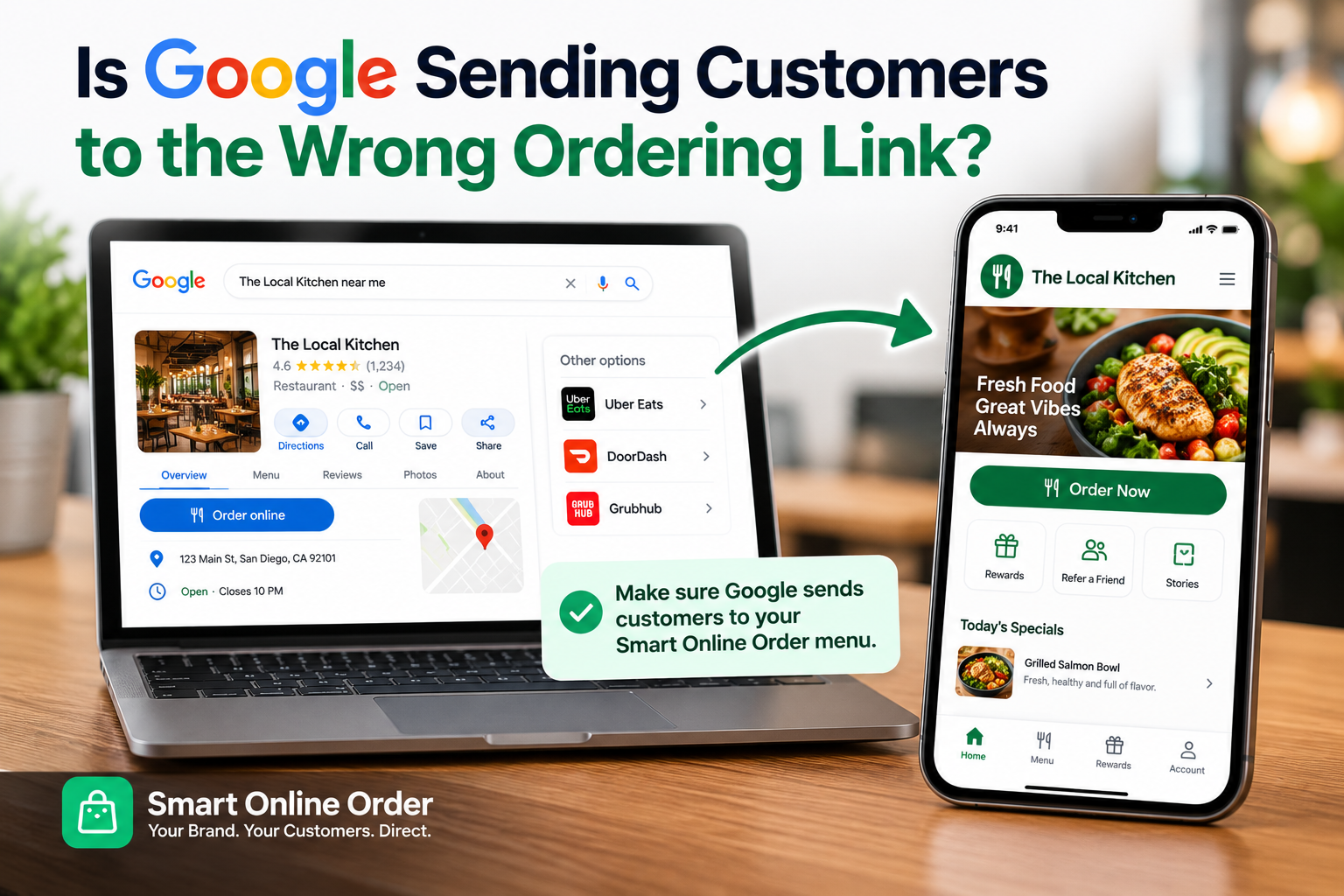
When someone clicks that ordering button, are they being sent to your Smart Online Order menu?
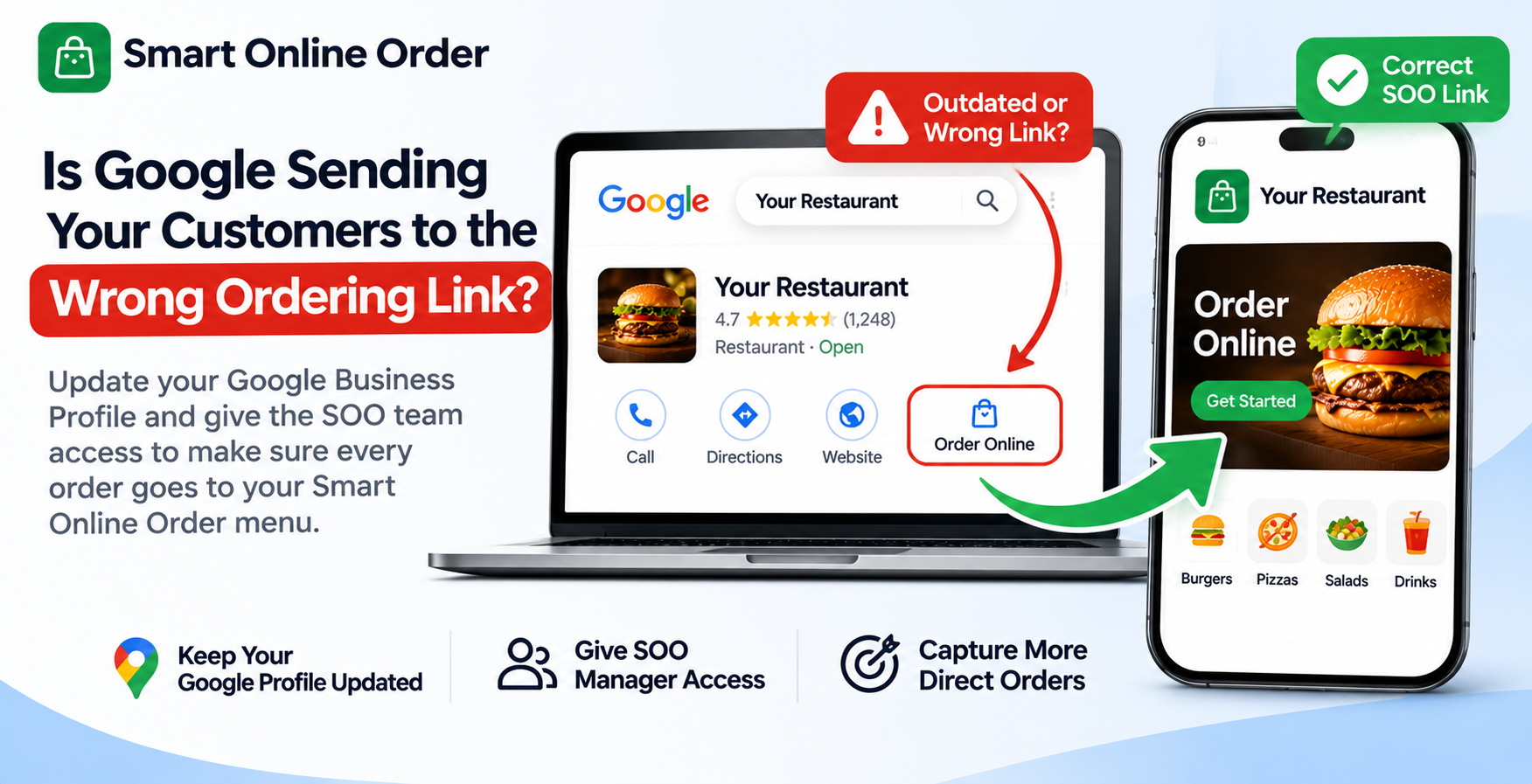
If your Google Business Profile still has an outdated ordering link, a third-party ordering provider, or an old website URL, customers may not be reaching the ordering experience you want them to use.
For restaurants using Smart Online Order (SOO), keeping the Google Business Profile updated is an important part of making sure customers can find the correct direct ordering page.
That's why we recommend giving the Smart Online Order team Manager access to your Google Business Profile. Our team can review your ordering links and help make sure your profile is directing customers to the correct Smart Online Order experience.
Why Your Google Business Profile Matters for Online Orders
Your Google Business Profile is often one of the first places potential customers interact with your restaurant.
Think about how customers search:
- Best pizza near me
- Mexican restaurant open now
- Burger restaurant in my area
- Order food from [Restaurant Name]
- [Restaurant Name] online ordering
A customer may find your restaurant through Google Search or Google Maps, check your menu, and decide to place an order.
Google allows eligible restaurants to display online ordering links and third-party ordering options directly on their Business Profile.
This means your profile can play an important role in the customer journey.
If the ordering link is incorrect or outdated, customers may experience unnecessary confusion or end up on a different ordering platform.
Your Google Business Profile should point customers toward the correct ordering experience for your restaurant.
What Can Happen If Your Google Ordering Link Is Outdated?
Imagine a customer searches for your restaurant and clicks the Order Online button.
Instead of reaching your Smart Online Order menu, they are sent to:
- An old online ordering website
- A third-party ordering marketplace
- An outdated menu
- A website that no longer accepts orders
- An ordering page that your restaurant no longer uses
This creates an unnecessary extra step in the ordering journey.
For example, if your restaurant has moved to Smart Online Order but Google still displays an older ordering provider, customers may continue using the previous link.
You may also have multiple ordering options displayed on your profile, making it less clear which link customers should choose.
This is why reviewing your Google Business Profile after setting up Smart Online Order is so important.
How Smart Online Order Helps You Manage Your Online Ordering Experience
Smart Online Order helps restaurants using supported Clover POS systems offer online ordering through their own ordering pages.
However, setting up your Smart Online Order menu is only one part of the process.
You should also make sure customers can discover that menu through the channels they already use, including Google Search and Google Maps.
By reviewing your Google Business Profile, the Smart Online Order team can help check:
1. Your online ordering link
We can review the ordering link displayed on your profile and help ensure it points to the correct Smart Online Order page.
2. Your preferred ordering link
If multiple ordering links are available, we can help review which one should be marked as your preferred option, where Google provides that setting.
3. Third-party ordering providers
We can identify outdated or unwanted ordering options and guide you through the appropriate steps to hide or remove them.
4. Your restaurant website
We can check that your website information and ordering destinations are consistent with your current setup.
5. Your customer ordering journey
We can review what customers see when they find your restaurant on Google and follow the ordering link.
Our goal is to help make your Smart Online Order menu easier for customers to find and access.
Why You Should Give the Smart Online Order Team Manager Access
You might be wondering why you need to add our team to your Google Business Profile.
The reason is simple: reviewing and managing your restaurant's ordering links is easier when our team has the appropriate access.
Google allows business owners to invite other people as Managers without sharing their Google account password.
A Manager can edit profile information and URLs, manage the profile on Google Search and Maps, and help with day-to-day profile updates.
For Smart Online Order customers, this access allows our team to review the profile and assist with the ordering link setup.
You remain the owner of your Google Business Profile.
A Manager cannot add or remove other users or remove the Business Profile itself. You retain control over ownership and access.
Adding the Smart Online Order team is a simple step that can help us support your online ordering setup more effectively.
How to Give Smart Online Order Manager Access to Your Google Business Profile
Follow these steps to invite the Smart Online Order team.
Step 1: Open Your Google Business Profile
Visit Google Business Profile and sign in using the Google account that manages your restaurant.
If you manage multiple restaurant locations, make sure you select the correct business.
Step 2: Open Business Profile Settings
Find your restaurant's Business Profile on Google Search or through the Business Profile management interface.
Open the profile settings menu.
Navigate to:
Business Profile settings → People and access
This section displays the people who currently have access to your restaurant's profile.
Step 3: Invite a New User
Inside the People and access section:
- Click Add or Invite new users.
- Enter the email address provided by the Smart Online Order team.
- Under Access, select Manager.
- Click Invite.
Important: Contact the Smart Online Order team to receive the correct email address to use for the invitation. Do not send your Google password or login credentials.
Step 4: Confirm the Invitation
Once you send the invitation, the Smart Online Order team can accept it.
You can return to the People and access section to check whether the invitation is pending or accepted.
After the invitation is accepted, our team can access the profile with the assigned Manager permissions.
Step 5: Let the Smart Online Order Team Review Your Ordering Links
Once access is granted, our team can review your restaurant's Google Business Profile and help check:
- Whether your Smart Online Order link is displayed correctly
- Whether the correct ordering link is preferred
- Whether outdated ordering providers are still appearing
- Whether customers are being directed to the correct ordering page
If changes are needed, our team can coordinate the appropriate updates with you.
How to Check Your Restaurant's Google Ordering Link Yourself
You can also review your ordering links at any time.
- Search for your restaurant on Google while signed in to the account that manages its profile.
- Open your Business Profile management options.
- Find Food ordering or the relevant ordering section.
- Review the available ordering providers and links.
- Check whether your Smart Online Order page is listed.
- If multiple options are available, review which one is marked as preferred for collection or delivery.
Google's interface can vary by country and profile configuration. In some regions, ordering options appear under an Order Online button, while in others they may appear separately.
If your Smart Online Order link is missing, your team can review the available options for adding a custom ordering link.
Google also allows eligible businesses to add custom ordering links and set a preferred online ordering provider.
You can read Google's official instructions here:
- Manage Online Ordering Options
- Manage Business Profile Links
- Manage Business Profile Owners and Managers
What If Another Ordering Provider Is Still Showing on Google?
This is something restaurant owners should pay attention to.
Google may display ordering links supplied by third-party providers that have an authorized relationship with your restaurant.
These links can sometimes appear automatically, even if your restaurant has started using a different online ordering system.
If you see an old provider, review the available settings under Food ordering.
Google allows eligible restaurant owners to hide certain third-party food ordering providers for pickup, delivery, or both. You can also remove certain links or change your preferred ordering provider.
The Smart Online Order team can help identify which options need attention.
Important: Adding Smart Online Order as your preferred link does not automatically remove every other provider. Each ordering option may need to be reviewed separately, and Google controls how eligible links appear in Search and Maps.
Your Google Business Profile and Smart Online Order Should Work Together
Your online ordering setup should not stop at your website.
Customers discover restaurants through several channels, including Google Search, Google Maps, social media, and direct website visits.
Each channel should make it as easy as possible for customers to reach your ordering page.
For example:
| Customer discovery channel | What customers should find |
|---|---|
| Google Search | Your restaurant profile and correct ordering link |
| Google Maps | Your restaurant information and available ordering options |
| Restaurant website | Your Smart Online Order menu |
| Social media | Your direct ordering link |
| Branded mobile app | Your restaurant's dedicated ordering experience |
When these channels are properly maintained, customers have a clearer path to placing an order directly with your restaurant.
Frequently Asked Questions
Why does Smart Online Order need access to my Google Business Profile?
Manager access allows the Smart Online Order team to review your restaurant's Google Business Profile and assist with checking and updating your online ordering links. This helps ensure customers can find the correct ordering page.
Should I give Smart Online Order Owner or Manager access?
We recommend Manager access for this purpose. It provides the permissions needed for many profile management tasks without giving the team ownership of your restaurant's profile.
Do I need to share my Google password?
No. Google allows you to invite users through their own Google Accounts. Never share your personal Google password.
Can Google show multiple online ordering links?
Yes. Depending on your location and profile configuration, Google can display multiple eligible ordering providers or custom links. You can review available options and set a preferred ordering provider where supported.
Will adding Smart Online Order as a manager automatically update my ordering link?
Not automatically. Granting access allows the team to review your profile and make or coordinate the necessary updates. The ordering link itself must be checked and configured.
Does this help customers find my direct ordering page?
It can make your direct ordering page easier to access from your Google Business Profile when the correct link is added and displayed. It does not guarantee higher search rankings or a specific number of orders.
What if I have multiple restaurant locations?
Each restaurant location should be reviewed to make sure its Google Business Profile points to the correct location-specific Smart Online Order menu. Contact our team if you manage multiple locations.
Take Two Minutes to Give Our Team Access
Your restaurant has already taken an important step by using Smart Online Order.
Now let's make sure customers who discover your business on Google can find the right place to order.
An outdated ordering link can create unnecessary confusion. A properly configured Google Business Profile helps customers move from discovering your restaurant to reaching your Smart Online Order menu.
Please add the Smart Online Order team as a Manager on your Google Business Profile.
Once the invitation is accepted, our team can review your profile and help make sure your online ordering links are configured correctly.
If you need help, contact the Smart Online Order team and ask for the Google Business Profile access email.
Smart Online Order | Helping restaurants simplify online ordering and capture more direct orders.